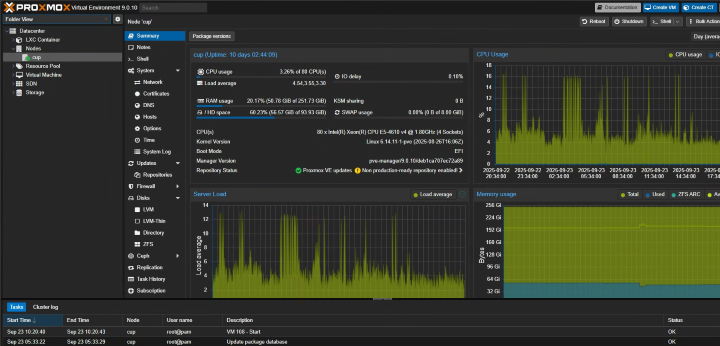

Proxmox Virtual Environment (Proxmox VE) is an open-source server virtualization management platform that organizations of all sizes widely use. The latest version of Proxmox VE is 9.0, which offers a range of new features and improvements over its predecessor, Proxmox VE 8.x.
If you are currently running Proxmox VE 8.4, you might be interested in upgrading to the latest version, and it is recommended to do so because this brings significant enhancements and modernizations. I recently performed this upgrade on a working Proxmox server at my organization and documented the steps involved. This blog will provide a step-by-step guide on upgrading your Proxmox VE 8.4 installation to Proxmox VE 9.0.
Before we begin, it is essential to note that upgrading Proxmox VE is a complex process that involves several steps. The upgrade will affect your server’s uptime and significantly change the operating system’s underlying code. So it is highly recommended that you back up your Virtual machines and containers hosted on the Proxmox server or, for better, migrate temporarily to another Proxmox installation.
What’s New in Proxmox VE 9.0
Proxmox VE 9.0 introduces several exciting new features that make the upgrade worthwhile:
- Debian 13 “Trixie” Foundation: Built upon the latest Debian release for improved stability and security
- Linux Kernel 6.14.8-2: Enhanced hardware compatibility and performance
- VM Snapshots on LVM: Support for snapshots on thick-provisioned LVM shared storage, including iSCSI and FC-based SANs
- QEMU 10.0.2: Better virtual machine performance and live migration features
- ZFS 2.3.3: Support for adding new devices to existing RAIDZ pools without downtime
- Ceph Squid 19.2.3: Enhanced distributed storage cluster support
- Software-Defined Networking Fabrics: Advanced SDN capabilities for complex network architectures
- Modernized Mobile Web Interface: Completely rewritten mobile interface built with Rust
Prerequisites and Preparation
Before starting the upgrade process, ensure you meet the following requirements:
- Current Version: Upgraded to the latest version of Proxmox VE 8.4.1 or newer on all nodes
- Repository Configuration: Correct package repository configuration
- Ceph Clusters: If using hyper-converged Ceph, upgrade to Ceph 19.2 Squid before proceeding
- Backup: Valid and tested backup of all VMs and containers
- Free Disk Space: At least 5 GB free disk space on the root mount point, ideally more than 10 GB
- Access: Reliable access via console, IPMI, or physical access (avoid SSH if possible)
- Healthy Cluster: Ensure your cluster is in a healthy state
Using the Pre-Upgrade Checklist Script
Proxmox VE 8.4 includes a checklist program named pve8to9 that provides hints and warnings about potential issues. Run this script before, during, and after the upgrade process:
pve8to9To run it with all checks enabled:
pve8to9 --fullThis script only checks and reports issues, but doesn’t automatically fix them. Re-run the script after fixing each issue to ensure your actions were successful.
Step-by-Step Upgrade Process
Step 1: Update the Current System to the Latest 8.4
Log in to the Proxmox terminal and ensure you’re running the latest Proxmox VE 8.4 packages:
apt update
apt dist-upgrade
pveversion
The last command should report at least 8.4.1 or newer.
Step 2: Migrate Critical Virtual Machines
If any VMs and containers need to keep running during the upgrade, migrate them away from the node being upgraded. Remember that migration from older to newer Proxmox versions always works, but the reverse may not be supported.
Step 3: Update Debian Base Repositories to Trixie
Just like we did with previous upgrades, we need to update all Debian repository entries from Bookworm to Trixie. Proxmox 9.0 is based on Debian 13 “Trixie”, so let’s update the repository configurations:
sed -i 's/bookworm/trixie/g' /etc/apt/sources.list
sed -i 's/bookworm/trixie/g' /etc/apt/sources.list.d/pve-enterprise.list
Ensure that there are no remaining Debian Bookworm-specific repositories left. You can comment out any old repositories by putting a # symbol at the start of the respective line.
Step 4: Add Proxmox VE 9 Package Repository
For Enterprise Repository Users:
If you have a Proxmox subscription, add the new enterprise repository in the modern deb822 format:
cat > /etc/apt/sources.list.d/pve-enterprise.sources << EOF
Types: deb
URIs: https://enterprise.proxmox.com/debian/pve
Suites: trixie
Components: pve-enterprise
Signed-By: /usr/share/keyrings/proxmox-archive-keyring.gpg
EOF
After adding the new repository, verify it works correctly:
apt update
apt policy
Then remove the old repository file:
rm /etc/apt/sources.list.d/pve-enterprise.listFor No-Subscription Repository Users:
If you’re using the free no-subscription repository, add the Proxmox VE 9 repository:
cat > /etc/apt/sources.list.d/proxmox.sources << EOF
Types: deb
URIs: http://download.proxmox.com/debian/pve
Suites: trixie
Components: pve-no-subscription
Signed-By: /usr/share/keyrings/proxmox-archive-keyring.gpg
EOF
Verify the repository is working and remove any old Proxmox VE 8 repository entries from /etc/apt/sources.list or other .list files.
Step 5: Update Ceph Package Repository (If Applicable)
Note: This step is only for hyper-converged Ceph setups. Skip if you don’t use Ceph.
Ensure your Ceph cluster is running version 19.2 Squid before proceeding. Check your Ceph version:
ceph --versionFor Enterprise Ceph Repository:
cat > /etc/apt/sources.list.d/ceph.sources << EOF
Types: deb
URIs: https://enterprise.proxmox.com/debian/ceph-squid
Suites: trixie
Components: enterprise
Signed-By: /usr/share/keyrings/proxmox-archive-keyring.gpg
EOF
For No-Subscription Ceph Repository:
cat > /etc/apt/sources.list.d/ceph.sources << EOF
Types: deb
URIs: http://download.proxmox.com/debian/ceph-squid
Suites: trixie
Components: no-subscription
Signed-By: /usr/share/keyrings/proxmox-archive-keyring.gpg
EOF
Remove the old /etc/apt/sources.list.d/ceph.list file after verifying the new repository works.
Step 6: Refresh Package Index
Update the repositories’ package index and verify no errors are reported:
apt updateStep 7: Perform the System Upgrade
Now comes the main upgrade process. The time required depends heavily on your system’s performance, especially the root filesystem’s IOPS and bandwidth. A slow system can take 60+ minutes, while high-performance servers with SSD storage can complete the upgrade in under 5 minutes.
Start the upgrade with:
apt dist-upgradeDuring this process, you’ll be asked to approve changes to configuration files and service restarts. Here are the recommended choices for common configuration files:
/etc/issue: Choose “No” (keep current version) – Proxmox auto-generates this file/etc/lvm/lvm.conf: Choose “Yes” (install maintainer’s version) if you haven’t made custom changes/etc/ssh/sshd_config: Choose “Yes” for the maintainer’s version to use modern SSH options/etc/default/grub: Choose “No” (keep current) if you’ve made custom kernel boot parameters/etc/chrony/chrony.conf: Choose “Yes” if you haven’t made custom time source changes
For service restart prompts, use the default options if unsure, as the reboot after upgrade will restart all services cleanly.
Step 8: Reboot and Verify
After the dist-upgrade completes successfully, reboot the system to use the new Proxmox VE 9.0 kernel:
reboot nowImportant: You should reboot even if you previously used the 6.14 kernel through the opt-in package on Proxmox VE 8, as the updated kernel was rebuilt with newer compiler and ABI versions.
Post-Upgrade Tasks
After rebooting, perform these verification steps:
- Clear Browser Cache: Empty your browser cache and force-reload the Web UI (
Ctrl + Shift + Ron Windows/Linux,⌘ + Alt + Ron macOS). - Verify Version: Check that the upgrade was successful:
pveversionThis should now show version 9.x.x.
- Run Post-Upgrade Checks: Run the checklist script again to identify any remaining issues:
pve8to9 --full- Clean Up: Remove obsolete packages and clean the package cache:
   apt autoremove
apt clean- Optional – Modernize Repository Format: You can convert your repository sources to the modern deb822 format:
apt modernize-sourcesFor Cluster Environments
If you’re upgrading a cluster:
- Check All Nodes: Ensure all nodes are running the latest package versions
- Continue with Next Node: If not all nodes are upgraded, continue with the next node starting from the prerequisites
- HA Migration: Proxmox VE 9 automatically migrates HA groups to HA rules once all cluster nodes are upgraded
- Monitor HA Services: Check HA logs if you encounter issues:
journalctl -eu pve-ha-crm
Known Issues and Troubleshooting
Common Issues
- Kernel Audit Messages: Due to systemd changes, you might see excessive audit messages during upgrade. Disable them before upgrading:
systemctl disable --now systemd-journald-audit.socket- LVM Thin Pool Repair: Some systems may need manual LVM thin pool repair after upgrade:
lvconvert --repair pve/data- Network Interface Name Changes: The new kernel may recognize different hardware features, potentially changing network interface names. Have console access ready in case network configuration needs adjustment.
GRUB Boot Issues
For systems with root on LVM in UEFI mode, ensure the correct GRUB version is installed:
[ -d /sys/firmware/efi ] && apt install grub-efi-amd64Conclusion
Upgrading Proxmox VE 8.4 to 9.0 is a comprehensive process that brings significant improvements to your virtualization platform. The new version, based on Debian 13 “Trixie” with Linux kernel 6.14, offers enhanced performance, security, and new features like VM snapshots on LVM and advanced SDN capabilities.
Following the steps outlined in this blog, you can successfully upgrade your Proxmox VE installation and take advantage of the latest features and improvements. Remember to back up your data and configuration files before proceeding with the upgrade, run the pre-upgrade checklist script, and verify that the upgrade was successful once complete.
The official Proxmox wiki and documentation are excellent sources of help if you encounter any error messages or feel stuck somewhere during the process. With proper preparation and following these detailed steps, your upgrade to Proxmox VE 9.0 should be smooth and successful.