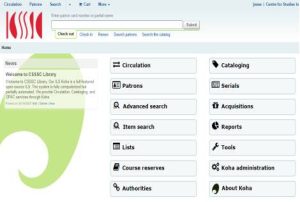
A practical guide to maintaining a reliable Koha Library Management System, preventing downtime, protecting bibliographic data, and keeping library services running smoothly.
Running Koha is only the beginning. The real work starts after installation, when the system must handle daily circulation, cataloging, patron accounts, email notifications, reports, and other library operations without interruption.
A Koha installation can run smoothly for months and then suddenly develop problems because of a failed backup, a full disk, a misconfigured service, an expired SSL certificate, or an upgrade that was not properly tested.
I have worked with Koha installations in institutional library environments, including data migration, configuration, automation, and server administration. One lesson is clear: a reliable library management system requires regular maintenance, not just a successful installation.
In this guide, I will explain 12 practical maintenance tasks that library professionals and system administrators should perform to keep their Koha servers healthy and reduce the risk of unexpected downtime.
Table of Contents
- Monitor server resources
- Check essential services
- Automate database backups
- Test database restoration
- Monitor Koha and Apache logs
- Keep the server updated
- Plan Koha upgrades carefully
- Check SSL certificates
- Verify email notifications
- Monitor scheduled jobs
- Review disk space and old files
- Document configuration changes
1. Monitor Server Resources Regularly
Koha depends on several server components, including Linux, Apache, a database server, and background processes. If the server runs out of memory, storage, or processing capacity, users may experience slow responses or failed requests.
Start by checking the server’s basic health.
Check available disk space:
df -hCheck memory usage:
free -hCheck system load and running processes:
uptime
top
These commands provide a quick overview of the server’s condition.
What should you look for?
- Disk partitions approaching full capacity.
- Memory consistently under pressure.
- Unexpectedly high system load.
- Processes consuming excessive CPU or memory.
- Sudden changes in resource usage compared with normal operating conditions.
A server with 90% disk usage is not necessarily failing, but it deserves attention. A server that reaches 100% may have difficulty writing logs, processing transactions, or completing scheduled tasks.
Do not wait until the OPAC stops responding to discover that the server has run out of space.
2. Check Essential Koha Services
Koha relies on multiple services. If a critical component stops, the staff interface, OPAC, or other functions may become unavailable.
On a typical Debian or Ubuntu installation, inspect the following services:
sudo systemctl status apache2
sudo systemctl status mariadb
sudo systemctl status koha-common
The exact service arrangement can vary according to the installation.
If a service is inactive or has failed, inspect its logs before restarting it blindly.
For Apache:
sudo journalctl -u apache2 -n 100 --no-pagerFor MariaDB:
sudo journalctl -u mariadb -n 100 --no-pagerFor Koha:
sudo journalctl -u koha-common -n 100 --no-pagerThese commands display recent service messages that can help identify configuration errors, resource problems, or startup failures.
Important: A service showing as active does not guarantee that the entire Koha installation is functioning correctly. Also test the OPAC, staff interface, circulation, and other essential functions.
3. Automate Koha Database Backups
Your library’s bibliographic records, item information, patron data, circulation transactions, and configuration are valuable operational data. Losing them can cause far more trouble than reinstalling the software.
A database backup should be created automatically rather than relying on someone to remember to run it.
For example, a manual database backup can be created using:
mysqldump --single-transaction koha_library \
  | gzip > koha_backup.sql.gz
In this example, koha_library is the database name. Replace it with the actual database name used by your installation. The database account running the command must have the necessary permissions.
For production systems, use a properly secured backup script with appropriate database credentials, error handling, and backup-retention rules. Avoid placing database passwords directly in scripts or exposing them in shell history.
A good backup strategy should include:
- Automated daily database backups.
- Copies stored outside the Koha server.
- Appropriate retention of daily, weekly, and monthly backups.
- Monitoring that confirms each backup completed successfully.
- Protection of backup files containing sensitive information.
Remember that a backup stored only on the same physical server may be lost along with the server itself.
4. Test Database Restoration
A backup file is useful only if it can be restored.
This is one of the most overlooked aspects of server maintenance. Administrators may see backup files being generated every night and assume that everything is safe. Unfortunately, a file existing does not prove that the backup is complete or usable.
Periodically restore a backup into a separate test environment.
A compressed SQL backup can be checked for basic readability with:
gzip -t koha_backup.sql.gzThis checks the gzip file’s integrity. It does not confirm that the database can be restored successfully.
For a proper restoration test:
- Prepare an isolated test server or database environment.
- Restore the backup using a procedure appropriate for your Koha installation.
- Verify that the database tables and records are present.
- Test important library functions.
- Record how long the restoration takes.
- Document any missing files or configuration required to rebuild the service.
A complete disaster-recovery plan may also need Koha configuration files, custom templates, locally stored documents, SSL configuration, and other files that are not contained in the SQL database.
Never test restoration by overwriting the live library database.
5. Monitor Koha and Apache Logs
Logs are among the most useful tools for diagnosing Koha problems. They can reveal errors that are invisible to users until a service fails.
Common Apache log locations include:
/var/log/apache2/error.log
/var/log/apache2/access.log
Koha also maintains logs associated with its instances. Their exact locations and names depend on the installation and configuration.
To inspect recent Apache errors:
sudo tail -n 100 /var/log/apache2/error.logTo follow new errors as they appear:
sudo tail -f /var/log/apache2/error.logPay attention to recurring messages, failed requests, permission errors, database connection problems, and repeated service restarts.
Do not automatically assume that every warning is critical. Look for patterns, timestamps, and messages that coincide with the time a problem occurred.
For a busy production server, consider a log rotation and retention policy so that logs remain useful without consuming excessive storage.
6. Keep the Operating System and Dependencies Updated
Security updates are an important part of maintaining a production server. Outdated software can leave a system exposed to known vulnerabilities or compatibility problems.
On Debian or Ubuntu, check available package updates with:
sudo apt update
apt list --upgradable
Do not treat every available update as something to install immediately on a live library server without preparation.
Before making significant changes:
- Confirm that recent backups are available.
- Review the packages that will be upgraded.
- Check whether the changes affect Koha or its dependencies.
- Plan an appropriate maintenance window.
- Test important functions after the update.
For major operating-system changes, review Koha’s official installation and upgrade documentation first.
7. Plan Koha Upgrades Carefully
Koha upgrades may introduce bug fixes, security improvements, and new features. They can also affect customizations, templates, integrations, and local scripts.
This matters especially when an institution has customized Koha to implement a specific library policy.
For example, a library might use custom code to calculate progressive overdue fines or modify an OPAC template to display additional information. If that code changes during an upgrade, the feature may stop working or create unexpected problems.
Before upgrading:
- Record the installed Koha version.
- Review the official upgrade instructions and release notes.
- Take and verify backups.
- Identify customizations and external integrations.
- Test the upgrade on a staging system whenever possible.
- Prepare a recovery plan.
- Test circulation, cataloguing, patron access, reports, and notifications after the upgrade.
Avoid editing core files without documenting the changes and planning how they will be maintained across future upgrades.
The aim is not to avoid upgrades. It is to make them predictable rather than turning a routine maintenance task into an emergency.
8. Check SSL Certificates and HTTPS
If your Koha OPAC and staff interface are available over HTTPS, an expired or incorrectly configured SSL certificate can interrupt access or produce browser security warnings.
For a server using Certbot, inspect the certificate status with:
sudo certbot certificatesYou can also test the renewal process:
sudo certbot renew --dry-runThe second command tests the renewal process without performing a normal production renewal.
Do not assume that certificate renewal is working simply because the certificate was installed successfully months ago. Confirm that the renewal mechanism is configured and that the web server can use the renewed certificate.
Also verify that the OPAC and staff interface load correctly over HTTPS after relevant configuration changes.
9. Verify Email Notifications
Koha email notifications may be used for overdue notices, due-date reminders, holds, and other library communications. If email delivery fails, staff may not notice until a patron reports a missing notification.
Check the following:
- SMTP configuration and authentication.
- The sender address and institutional email settings.
- Network access to the configured mail server.
- Mail server logs or delivery reports.
- Koha message queues and relevant scheduled tasks.
- Whether messages are reaching spam folders or being rejected.
Send a controlled test message after changing email settings.
If email delivery suddenly stops, investigate the logs and mail server response before changing several settings at once. Multiple simultaneous changes make troubleshooting unnecessarily difficult.
10. Verify Scheduled Jobs and Automated Reports
Koha uses scheduled tasks for various background operations. Libraries may also configure their own scheduled jobs to generate reports, create backups, or email reports to administrators.
A scheduled task that works when run manually may fail when executed by cron because the cron environment differs from the interactive shell.
For custom cron jobs, verify:
- The correct command and file paths.
- The user account running the task.
- Required environment variables.
- File permissions.
- Output and error logging.
- Whether the job actually completed at its scheduled time.
For example, a custom script can redirect its output to a log file:
/path/to/your-script.sh >> /var/log/your-script.log 2>&1Replace the example path with the actual script location. Ensure the account running the task can write to the log file.
Do not rely only on the existence of a cron entry. Confirm that the job ran and produced the expected result.
11. Monitor Disk Space and Old Files
Koha servers can accumulate database backups, compressed logs, temporary files, reports, and other generated data.
Use the following command to identify large directories at the root of the filesystem:
sudo du -xhd1 / 2>/dev/null | sort -hTo inspect a particular directory, substitute its path for /var/log, /var/backups, or another directory relevant to your system.
Before deleting files, identify what they contain and whether they are still required.
A sensible cleanup policy should:
- Retain backups according to a documented schedule.
- Remove obsolete temporary files where safe.
- Use log rotation instead of uncontrolled log deletion.
- Avoid deleting unknown files from Koha’s installation or data directories.
- Alert administrators before critical partitions run out of space.
Never delete database files or Koha data directories simply because they appear large.
12. Document Configuration Changes
When a production server has been running for years, administrators may forget why a particular setting was changed or which customization supports a library’s workflow.
Documentation reduces that risk.
Maintain a record of:
- Koha version and installation details.
- Server operating-system version.
- Database and web-server configuration relevant to operations.
- Custom scripts and their locations.
- Cron jobs and their purpose.
- Backup locations and restoration procedures.
- SSL renewal arrangements.
- Customisations and upgrade considerations.
- The date and outcome of major maintenance activities.
Keep credentials and other secrets out of general documentation. Store sensitive information in an appropriate secure system.
This documentation becomes particularly valuable when another administrator has to troubleshoot the system or when the library migrates to a new server.
A Practical Koha Maintenance Schedule
The following schedule is a useful starting point. Adapt it to your library’s workload, infrastructure, backup requirements, and institutional security policies.
| Frequency | Maintenance task |
|---|---|
| Daily | Check backup completion, critical service status, and available disk space |
| Weekly | Review error logs, verify automated reports, and inspect resource usage |
| Monthly | Test a database restoration, review storage growth, and examine scheduled jobs |
| Before every upgrade | Verify backups, document customisations, and prepare a recovery plan |
| After every major change | Test OPAC, staff interface, circulation, reports, and email notifications |
| Periodically | Review access controls, backup retention, documentation, and disaster recovery |
Automated monitoring is preferable wherever practical, but important alerts should be reviewed by a responsible administrator.
Frequently Asked Questions
How often should a Koha database be backed up?
For an actively used production library, daily backups are a reasonable starting point. Institutions with high transaction volumes or stricter recovery requirements may need more frequent backups. The schedule should reflect how much data the library can afford to lose.
Is restarting Apache a solution to Koha problems?
Not necessarily. Restarting Apache may restore service in some situations, but it will not fix every database, resource, or configuration problem. Investigate the relevant logs and service status before deciding on corrective action.
Can Koha upgrades affect customizations?
Yes. Depending on the upgrade and the way a customization was implemented, local code or templates may need to be reviewed or adapted. Document changes and test upgrades in a suitable environment before applying them to production.
Is backing up the database enough?
Not always. A complete recovery plan may also require configuration files, custom scripts, uploaded files, and other components of the installation. Test the full restoration procedure rather than relying solely on a database dump.
Can small libraries manage Koha maintenance themselves?
Libraries with appropriate Linux, database, and system-administration skills can manage many routine tasks themselves. Production installations still require sound security practices, reliable backups, upgrade planning, and a clear recovery process.
Final Thoughts
Maintaining Koha is an ongoing responsibility. Regular checks, automated backups, tested restoration procedures, careful upgrades, and useful documentation can prevent many avoidable problems.
The most important principle is simple: do not wait for the library system to fail before checking whether it is healthy.
A few minutes spent reviewing backups, logs, services, and storage can save hours of troubleshooting later. More importantly, it helps protect the data and services that librarians and patrons depend on every day.
For further guidance, consult the official Koha documentation and the Koha installation and upgrade resources.
If your institution is planning a Koha installation, migration, upgrade, or server maintenance project, document the requirements and test the proposed changes before making them in a live system.